
IPTV Smarters not working is almost never a broken app. In the vast majority of cases it is one of five things: your connection, a stale cache, an expired or maxed-out line, a DNS block from your ISP, or the provider’s server having a bad night. The good news is that you can tell which one it is in about sixty seconds, and most fixes take less time than reading this sentence.
This guide walks the fixes in the order a support technician would actually try them — cheapest and most likely first, deepest last. Work down the list and stop when the picture comes back.
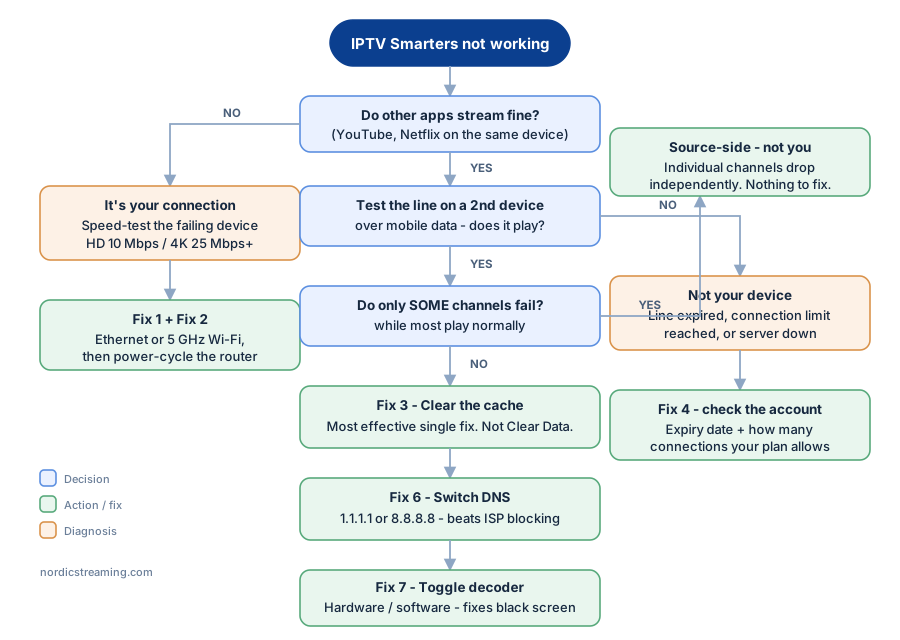
Start here: the 60-second triage
Before changing a single setting, answer these three questions. When IPTV Smarters is not working, they eliminate about 80% of cases immediately.
| Question | If YES | If NO |
|---|---|---|
| Do other apps stream fine (YouTube, Netflix)? | Your internet is fine — skip to Fix 3 | It’s your connection — start at Fix 1 |
| Do some channels work but others don’t? | Server-side or channel-specific — go to Fix 7 | Account or app-wide issue — go to Fix 4 |
| Did it stop working right after an update or a move? | App or network change — go to Fix 5 | Likely account or server — go to Fix 6 |
Is IPTV Smarters down right now?
Worth ruling out first, because no amount of cache-clearing fixes an outage. When IPTV Smarters is not working for everyone at once, the app opens but no channels load at all — and if your other streaming apps behave normally, the problem sits upstream of your device.
Two quick tells:
- Try a second device. Load your line on a phone over mobile data. If it fails there too, it is not your TV, router, or home network — it is the app or the service.
- Try a second app. Load the same credentials into any alternative player. If the stream plays elsewhere, the app is the problem. If it fails everywhere, the line or the server is.
That second test is the single most useful thing you can do, because it splits the problem cleanly in half. Everything below assumes you have done it.
11 fixes for IPTV Smarters not working
1. Check your actual speed, not your plan
The number on your bill is not the number reaching your player. Run a speed test on the device that is failing — not your laptop.
- SD: 5 Mbps
- HD: 10 Mbps
- 4K: 25 Mbps and up
If you are on Wi-Fi and sitting more than a room away from the router, that is frequently the whole story. A cheap Ethernet cable fixes more buffering complaints than any setting in the app. Where cable is impossible, move to the 5 GHz band — it is faster and far less congested than 2.4 GHz, at the cost of range.
2. Restart the right things, in the right order
Not just the app. Power-cycle the chain, and give the router its full boot time:
- Force close the app (see Fix 3)
- Unplug the router for 30 seconds, plug it back in, wait 2 minutes
- Restart the streaming device itself — a true reboot, not standby
- Open the app again
Standby is not a restart. Firesticks in particular can run for months without ever truly rebooting, and they accumulate memory pressure that shows up as stuttering and freezes.
3. Clear the cache (the single most effective fix)
If one fix on this page solves your problem, statistically it is this one. The cache holds channel lists, EPG data, and thumbnails, and when it grows stale it causes exactly the symptoms people describe as “the app is broken.”
Firestick / Fire TV: Settings → Applications → Manage Installed Applications → IPTV Smarters → Clear Cache. Do not tap Clear Data unless you are prepared to re-enter your login.
Android / Android TV: Settings → Apps → IPTV Smarters → Storage → Clear Cache.
iOS / Apple TV: There is no cache button. Delete the app and reinstall it — same effect, but you will need your credentials.
Samsung / LG Smart TV: Hold the app icon → Reinstall, or remove and re-add it from the store.
Clear the cache monthly and most playback complaints never appear in the first place.
4. Confirm your subscription is actually active
An expired line looks identical to a broken app: the interface opens, and nothing plays. Check the expiry date on your account, and check how many connections your plan allows.
This one catches people out constantly. If your plan covers one connection and it is already running on the bedroom TV, the living room will simply refuse to play. Leaving an app open in the background on a phone counts as a live connection. Close it properly and try again.
5. Update — or roll back — the app
Old builds stop talking to updated servers. But the reverse also happens: a bad release breaks playback for everyone until it is patched. If your problem started the same day the app updated, that is your suspect. Reinstalling the previous version is a legitimate fix while you wait for the next release.
6. Change your DNS
Many ISPs block IPTV traffic at the DNS layer. It is cheap for them and invisible to you — the app simply fails to resolve the server, which looks like a dead line. Switching resolvers bypasses that entirely and takes two minutes.
- Google Public DNS: 8.8.8.8 and 8.8.4.4
- Cloudflare: 1.1.1.1 and 1.0.0.1
Set these on the router so every device benefits, or per-device under network settings. If the stream comes back the moment you switch, your ISP was filtering — see our guide on how to bypass ISP blocks for IPTV.
7. Toggle hardware decoding
In the app: Settings → Player Settings → change the decoder. If you are on hardware, switch to software, and vice versa.
Hardware decoding uses the device’s dedicated video chip — efficient, but it fails on codecs the chip does not support, which produces audio with no picture, or a black screen with the channel clearly “playing.” Software decoding is slower but far more forgiving. On older Firesticks, software decoding is often the difference between a stutter and a clean stream.
8. Try a VPN — briefly, as a test
Use this as a diagnostic before you use it as a solution. If a stream that stalls constantly plays perfectly through a VPN, you have proven your ISP is throttling or filtering that traffic. That is useful information: it means nothing is wrong with your device, your app, or your subscription.
Connect to a server geographically near you — every extra mile adds latency, and latency is what causes buffering.
9. Check for an overloaded or blocked port
If everything worked until you changed router or moved house, the new network may be filtering the ports the service uses. Test the same line on mobile data. If it plays on 4G but not on your home Wi-Fi, the router or ISP is the culprit — not the app.
10. Free up storage and memory
A Firestick with under 500 MB free will stutter no matter how fast your internet is. Uninstall apps you never open, clear caches across the board, and reboot. Streaming devices are small computers with very little headroom.
11. Reinstall from scratch
The last resort, and the one that clears corrupted config files nothing else touches. Uninstall the app completely, reboot the device, reinstall, then re-enter your credentials manually rather than restoring a backup — a corrupted profile will happily restore itself along with the backup.
Error message decoder
Reports of IPTV Smarters not working arrive with different wording depending on the device, but the underlying meanings are consistent.
| What you see | What it usually means | Go to |
|---|---|---|
| Playback error / “Can’t play this stream” | Codec mismatch or dead channel source | Fix 7, then Fix 3 |
| Black screen, audio still playing | Hardware decoding failure | Fix 7 |
| Constant buffering mid-stream | Bandwidth, Wi-Fi, or throttling | Fix 1, then Fix 8 |
| Invalid credentials / login failed | Expired line or connection limit reached | Fix 4 |
| No channels load at all | Server-side or DNS block | Fix 6 |
| App opens then closes immediately | Corrupted cache or low memory | Fix 3, then Fix 10 |
Device-specific quirks
Firestick: the most common culprit by a wide margin, purely because it is the most common device. Low storage and never-rebooted uptime cause most of it. Fixes 3, 10 and 2, in that order.
Samsung and LG Smart TVs: limited memory and slower processors. Software decoding often works better than hardware here, and closing other apps genuinely helps.
Android boxes: check whether the box is actually running the Android version the app requires. Cheap boxes frequently ship with outdated builds that quietly stop being supported.
iOS and Apple TV: no cache clearing, so reinstalling is the equivalent step. Apple’s stricter background rules also mean the app may lose its connection when backgrounded for long periods.
How to stop it happening again
Nearly every case of IPTV Smarters not working traces back to the same short list of causes, and all of them are preventable with a few minutes of maintenance:
- Clear the cache once a month — 30 seconds, prevents most issues
- Use Ethernet wherever you can, or 5 GHz Wi-Fi if you cannot
- Keep at least 1 GB free on streaming devices
- Reboot the device properly once a week
- Set DNS at the router so it applies everywhere
- Note your renewal date so an expired line never surprises you
When it is not your fault
Sometimes it genuinely is the service. If you have worked through this list, tested on a second device, tested on a second app, and tested on mobile data, and it still fails everywhere — the problem is on the provider’s side, and no setting on your device will fix it.
That is the point at which the quality of your provider matters more than the quality of your troubleshooting. Reliable servers, honest connection limits, and support that answers are what stop this page from being necessary in the first place. If you are constantly diagnosing instead of watching, see our IPTV service reviews.
Frequently asked questions
Why is IPTV Smarters not working but my internet is fine?
Because “internet working” and “IPTV working” are different tests. Streaming needs sustained throughput and unfiltered routing, not just a connection. The usual causes are a stale cache, an ISP DNS block, or an expired line — Fixes 3, 6 and 4 respectively.
How do I clear the cache on IPTV Smarters?
On Firestick: Settings → Applications → Manage Installed Applications → IPTV Smarters → Clear Cache. On Android: Settings → Apps → IPTV Smarters → Storage → Clear Cache. On iOS and Smart TVs there is no cache option — reinstall the app instead. Choose Clear Cache rather than Clear Data to keep your login.
Why does IPTV Smarters keep freezing or buffering?
Almost always bandwidth or throttling. Test the speed on the failing device, move to Ethernet or 5 GHz, and if a VPN makes the problem disappear, your ISP is throttling the traffic.
Is IPTV Smarters down, or is it just me?
Load your credentials on a second device over mobile data. If it fails there too, the issue is the app or the service rather than your home network. Testing the same line in a different player narrows it further — if it plays elsewhere, the app is at fault.
Why do only some channels fail?
That points at the source, not your setup. Individual channels go down independently of the rest of the service. If the majority play normally, there is nothing to fix on your end.
Will reinstalling delete my subscription?
No. Your subscription lives on the provider’s server, not in the app. Reinstalling only removes local settings — you will need your username, password and server URL to log back in, so keep them somewhere safe before you start.
The short version
When IPTV Smarters is not working, resist the urge to change ten settings at once. Test on a second device to split the problem in half, then clear the cache, confirm the line is active, and switch DNS. Those four steps resolve the overwhelming majority of cases, and they take about five minutes between them.
Related guides: installing IPTV Smarters Pro, setting it up on Firestick, and configuring IPTV on Kodi.