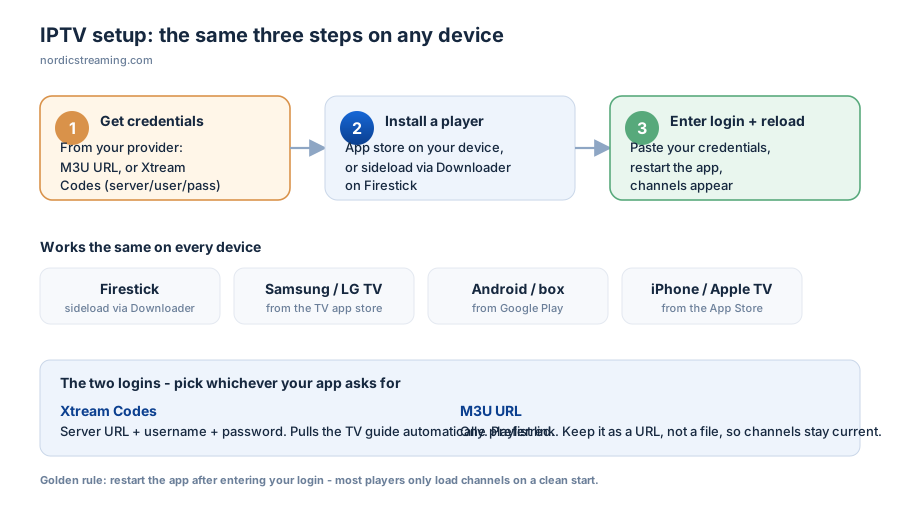
IPTV setup is the same three moves on every device: install a player, feed it your subscription details, and reload. The device changes, the two things you type never do — an M3U playlist URL, or an Xtream Codes login. Once you have those from your provider, getting live TV running takes under ten minutes on anything from a Firestick to a Samsung TV.
This guide does the setup for every major device, then covers the parts most tutorials skip: which login type to pick, what to do when channels load but will not play, and the settings that quietly fix buffering before it starts.
What you need before you start
Two things, and you cannot begin without them:
- An IPTV subscription from a provider. This gives you the credentials below. No subscription, nothing to install into.
- Your login details — either an M3U playlist URL, or an Xtream Codes set (server URL, username, password). Most providers give you both; either works.
If you do not have credentials yet, that is step zero — see how to get an IPTV subscription first, then come back here to install it.
M3U or Xtream Codes — which do I use?
Whichever your app asks for, but if you get the choice, Xtream Codes is the better pick. It pulls the channel guide (EPG) automatically and updates cleanly, where a raw M3U URL sometimes needs the guide added separately. If your app only takes an M3U URL, that is fine too — it just means one extra field for the EPG.
IPTV setup on Firestick and Fire TV
The most popular device, and the one with an extra step, because the main players are not in Amazon’s store. You sideload them with the Downloader app.
- From the Amazon Appstore, install Downloader
- Go to Settings → My Fire TV → Developer Options and turn on Install Unknown Apps for Downloader
- Open Downloader, enter the download link for your player (IPTV Smarters, TiviMate, or similar), and install it
- Open the player and enter your M3U or Xtream Codes login
For the full walkthrough with a specific player, see our guide on installing an IPTV player on Firestick. If a stream stutters on an older stick, turn hardware decoding off in the player’s settings.
IPTV setup on Samsung and LG Smart TVs
No sideloading here — the apps are in the TV’s own store.
- Open the app store: Samsung Apps on a Samsung (Tizen), or the LG Content Store on an LG (webOS)
- Search for an IPTV player and install it
- Open it and enter your login details
Some players on Smart TVs use the website-registration model — the app shows a device code you enter on the provider’s site, and your playlist loads from there. If your app has no field to type a playlist into, that is why; look for a code on screen and a matching website. Our IBO Player Pro guide covers that style in full.
IPTV setup on Android and Android TV boxes
The easiest platform, because everything is in the Play Store.
- Open the Google Play Store and install your chosen player
- Open it and enter your M3U or Xtream Codes login
- Reload, and your channels appear
Android boxes vary wildly in power. A cheap box on an old Android version will stutter where a mid-range one runs flawlessly, so if a stream struggles, the box is often the limit rather than your connection.
IPTV setup on iPhone, iPad and Apple TV
Install a player from the App Store, open it, and enter your login. Apple’s rules are stricter about background activity, so a player may drop its connection if left in the background for a long time — reopening it reloads the stream. There is no cache to clear on iOS, so if a player misbehaves, deleting and reinstalling is the equivalent reset.
How to log in: the two credential types
Every player asks for one of these. Knowing which is which saves the most common first-time mistake — pasting an M3U URL into an Xtream Codes field.
| Login type | What you enter | Best for |
|---|---|---|
| Xtream Codes | Server URL + username + password (three separate fields) | Most setups — pulls the EPG guide automatically |
| M3U URL | One long playlist link, pasted whole | Apps that only take a playlist; add the EPG URL separately |
Keep an M3U as a URL, never a downloaded file — a downloaded playlist never updates, so channels go stale. And enter credentials by hand rather than restoring a backup; a corrupted profile restores its problems along with itself.
IPTV setup problems, and how to fix them fast
Almost everything that goes wrong is one of these, in order of how often it is the cause:
- Nothing loads after login. Fully close and reopen the app — most players only pull the channel list on a clean start. This alone fixes most “it didn’t work” reports.
- Channels listed but nothing plays. The playlist loaded, the stream did not. Check your subscription is active and that your connection limit is not already used on another device.
- Constant buffering. Bandwidth or Wi-Fi. Move to Ethernet or 5 GHz, and if evenings are far worse than mornings, your ISP may be throttling — our VPN for IPTV guide explains how to test that.
- Black screen with sound. A decoding mismatch. Toggle hardware or software decoding in the player’s settings.
- Wrong login type error. You put an M3U URL in an Xtream field or vice versa. Match the credential to the field.
- No TV guide. Your EPG link is missing. Channels still play; add the guide URL to fill in the programme info.
Get the setup right once, and it stays right
A few habits keep a fresh IPTV setup trouble-free: reload the app after any change, use Ethernet where you can, keep the player updated, and note your renewal date so an expired line never surprises you mid-film. Do those and you will rarely open a troubleshooting guide again.
The one thing no setting can fix is a weak source. Overloaded servers buffer no matter how perfectly the app is configured, and a missing EPG leaves you guessing what is on. If you are still choosing a provider, our IPTV service reviews cover what separates a stable one from a frustrating one.
Frequently asked questions
How do I set up IPTV?
Install an IPTV player on your device, open it, and enter your login — either an M3U playlist URL or an Xtream Codes set (server, username, password) from your provider. Reload the app and your channels appear. The process is identical on every device; only the app store you install from changes.
How do I get IPTV in the first place?
You need a subscription from an IPTV provider. They issue your credentials — an M3U URL or Xtream Codes login — which you then enter into any player. The app is free; the subscription is what carries the channels.
How do I set up IPTV on a Firestick?
Because the main players are not in Amazon’s store, you install the Downloader app, enable “Install Unknown Apps” for it, then use it to sideload a player like IPTV Smarters. Open the player and enter your login. On older sticks, turning hardware decoding off cures most stutter.
How do I set up IPTV on a Samsung or LG TV?
Install an IPTV player from the TV’s own app store — Samsung Apps or the LG Content Store — then enter your login. Some Smart TV apps use a device-code system where you register the code on the provider’s website and the playlist loads from there.
Why does my IPTV keep buffering after setup?
Usually bandwidth, weak Wi-Fi, or ISP throttling rather than the setup itself. Move to Ethernet or 5 GHz first. If evenings buffer badly while mornings are fine, test the stream through a VPN — if it clears up, your ISP was throttling.
Can I use one IPTV subscription on multiple devices?
Only up to your plan’s connection limit. A one-connection plan plays on one device at a time; open it on a second and the first stops. Leaving an app running in the background counts as a live connection, so close players fully when you switch devices.
The short version
Every IPTV setup comes down to the same three steps on any device: install a player, enter your M3U or Xtream Codes login, and reload the app. Pick Xtream Codes when you can for the automatic guide, keep the M3U as a URL so it stays fresh, and if anything looks broken, restart the app before touching anything else. Get the credentials right from a solid provider and live TV runs on everything you own.
Device guides: Firestick, IPTV Smarters Pro, IBO Player Pro, and Kodi. Stream stalling? See fixing IPTV playback problems.