How to Set Up IBO Pro Player on Firestick
Follow this step-by-step guide to install and configure IBO Pro Player on your Firestick. If you need help, our support team is just a message away!
Step 1: Enable Developer Options
To enable Apps from Unknown Sources, you first need to activate Developer Options:
- Go to Settings.
- Select My Fire TV.
- Choose the About option.
- Select your Fire TV device, and press the Select button on your remote 7 times.
- Once activated, Developer Options will appear in the My Fire TV menu.
Note: If you’re having trouble, watch this step-by-step YouTube video for guidance.
Step 2: Enable Apps from Unknown Sources
Once Developer Options is enabled:
- Go to Settings > My Fire TV > Developer Options.
- Enable Apps from Unknown Sources.
Step 3: Download and Install IBO Pro Player
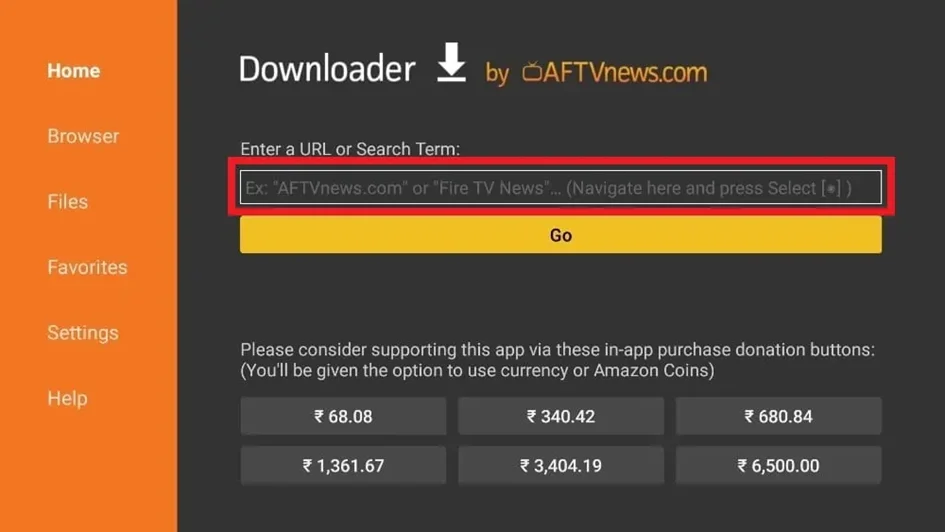
- Open the Downloader app.
- Enter the code: 834339 and press Go.
- Wait 5-10 seconds for the download to start.
- Click Install once the download is complete.
- After installation, click Open to launch the app.
Step 4: Retrieve Your MAC Address and Device Key
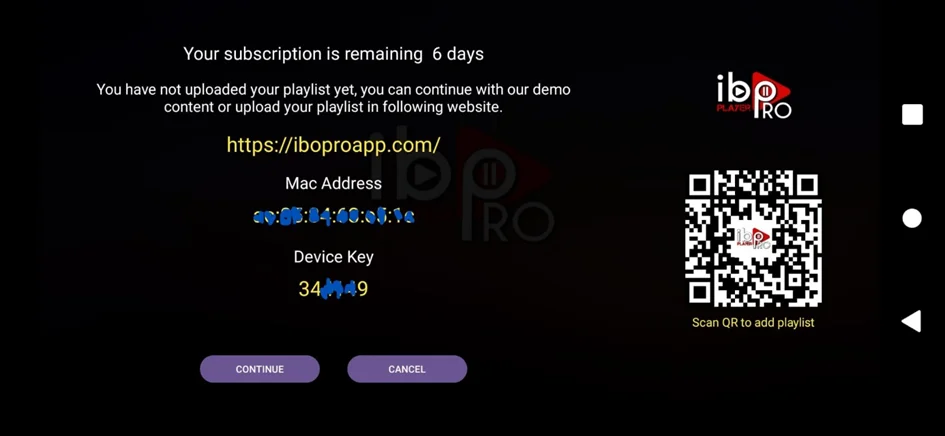
When you open IBO Pro Player, you’ll see a screen with your device’s details:
- Take a photo or write down the MAC Address and Device Key.
Important: Double-check the details for accuracy.
Step 5: Submit Your Details
Send your MAC Address and Device Key to:
Contact Support Step 6: Wait for Activation
Once we receive your details, we’ll activate your IPTV playlist. You’ll receive a confirmation via WhatsApp or email.
Step 7: Load Your Playlist
- Open IBO Pro Player.
- Click Reload or restart the app if the playlist doesn’t load immediately.
- Navigate to Live TV to start streaming.
Troubleshooting Tips
- Check your internet connection.
- Verify your MAC Address and Device Key.
- Clear the app’s cache and data.
- Reinstall the app if necessary.