
A Kodi IPTV setup turns the free media player you already know into a full live-TV box – thousands of channels, your own EPG guide, catch-up, all inside one interface, on whatever hardware you own. The catch is that Kodi does not stream anything by itself. It needs a small add-on called PVR IPTV Simple Client and a playlist from a provider. Wire those two together and you are watching live TV in about ten minutes.
This guide does the whole thing end to end, then covers the parts most tutorials skip: the settings that actually matter for a stable picture, the EPG guide nobody explains properly, and what to do when a channel list loads but nothing plays.
What you need before you start
Three things, and that is genuinely all:
- Kodi installed – version 19 (Matrix) or newer. Older builds handle the IPTV client differently and are not worth fighting.
- An M3U playlist URL or an Xtream Codes login from your provider. This is the piece that carries the channels.
- A wired connection if you can manage it. Not mandatory, but it is the single biggest difference between a clean stream and constant buffering.
No second app, no paid add-on, no “build.” PVR IPTV Simple Client ships inside Kodi already – you are switching it on, not downloading it.
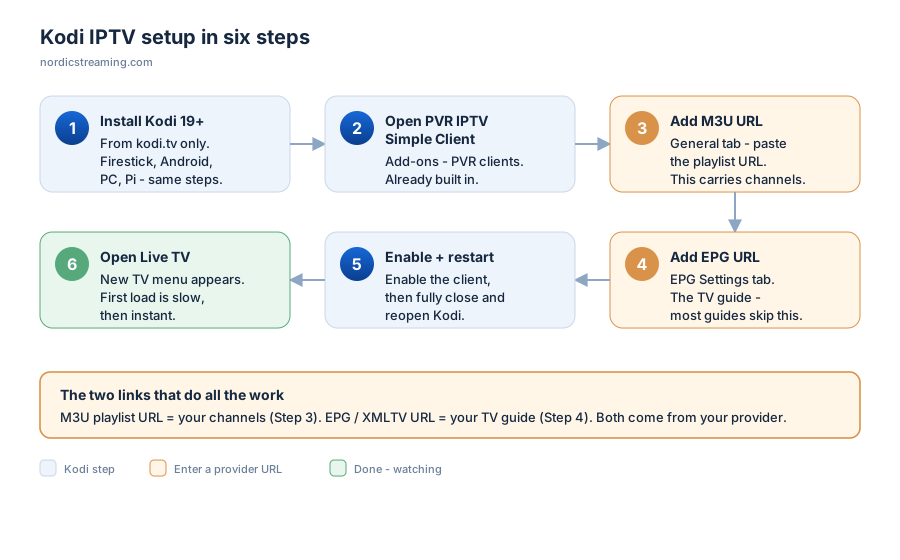
Kodi IPTV setup in six steps
Step 1: Install or update Kodi
If Kodi is already on the device, check the version under Settings → System Information and update if you are below 19. Fresh install? Grab it straight from the official Kodi download page – never a third-party mirror, which is how most people end up with a broken or tampered build.
Kodi runs on nearly everything: Firestick, Android boxes and phones, Windows, Mac, Linux, and Raspberry Pi. The steps below are identical across all of them; only the remote changes.
Step 2: Open the PVR IPTV Simple Client
From the Kodi home screen:
- Go to Add-ons in the left menu
- Select My add-ons → PVR clients
- Choose PVR IPTV Simple Client
It is already there, sitting disabled. On Kodi 19 and up you do not install anything at this step – you are about to configure a client that already exists. That trips people up constantly, because older guides tell you to download it.
Step 3: Add your playlist
With the client open, choose Configure, then land on the General tab. You have two ways in, depending on what your provider gave you.
If you have an M3U URL: set Location to Remote path (Internet address), paste the full M3U URL your provider issued into the M3U Play List URL field, and leave it as a URL – do not download the file and point at a local copy, because then your channel list never updates.
If you have Xtream Codes: some provider setups give you a server URL, username and password instead. These still resolve to an M3U link – your provider’s dashboard will show the exact URL to paste. Same field, same process.
Step 4: Add the EPG (the TV guide)
This is the step that separates a raw channel list from something that feels like real TV, and it is the step almost every tutorial leaves out.
Still in the client configuration, open the EPG Settings tab. Set the XMLTV URL your provider supplies. The EPG is what fills in the “what’s on now and next” guide – without it you get channels but no programme information, which makes a 5,000-channel list almost unusable. Provider gave you an M3U but no EPG link? Ask them; nearly all have one.
Step 5: Enable, then restart
Back out to the PVR IPTV Simple Client screen and select Enable. Then – and this matters – fully close Kodi and reopen it. The client only pulls your channel list and guide data on a clean start. Skip the restart and you will stare at an empty TV section convinced the setup failed, when it simply has not loaded yet.
Step 6: Open Live TV
Reopen Kodi and you will see TV and Radio entries in the main menu that were not there before. Open TV, give it a moment to populate the guide, and your channels are live. First load is the slow one – a big playlist plus EPG can take a minute. After that it is instant.
The settings that actually matter
Defaults are fine for most people, but three settings fix the majority of “it works but it stutters” complaints. All live inside the PVR IPTV Simple Client → Advanced tab, plus one in Kodi’s own player.
| Setting | Where | Why it matters |
|---|---|---|
| Cache mode | Player settings | Buffering to memory smooths out streams on a shaky connection. Worth raising the buffer if you stutter. |
| Number of channels to refresh | Client → Advanced | Huge playlists load faster if the client is not re-checking every channel on each start. |
| Hardware acceleration | Player → Videos | On low-power boxes, toggling this off can cure a black screen with sound; on capable ones, leave it on. |
Kodi IPTV not working? Work down this list
Symptoms look scary and fixes are usually trivial. In order of likelihood:
- No TV menu appears. You did not restart Kodi after enabling the client. Close it fully and reopen – this is the number-one cause by a mile.
- Channels listed but nothing plays. The playlist loaded, the stream did not. Check that your subscription is active and that your connection limit is not already used up on another device.
- Black screen with audio. A decoding mismatch. Toggle hardware acceleration in Player → Videos.
- Constant buffering. Bandwidth or Wi-Fi. Move to Ethernet, or raise the cache buffer. A VPN test tells you fast whether your ISP is throttling.
- Guide is empty. Your EPG URL is missing or wrong (Step 4). Channels will still play; you just have no programme info until it is set.
- Everything vanished after an update. Kodi major updates occasionally reset the PVR client. Re-enable it and restart.
Why Kodi for IPTV, and where it falls short
Kodi’s strength is that it is free, open, and runs on hardware you already own, with a genuinely good guide and recording features once configured. It is the power-user’s route.
The honest trade-off: it asks more of you than a purpose-built app. There is no login-and-watch – you configure a client, feed it URLs, and maintain it. If you want the absolute simplest path, a dedicated player is less fuss. If you want one interface that also handles your local media, plugins and everything else, Kodi is unmatched. For a side-by-side, our guide on installing an IPTV player on Firestick covers the simpler alternative.
Getting a playlist that actually works
Every step above assumes one thing: the M3U and EPG URLs you feed Kodi are good. A stable Kodi IPTV setup is 20% configuration and 80% the quality of the source behind those two links. Overloaded servers buffer no matter how perfectly you have set up the client; dead EPG links leave you guessing what is on.
If you are still choosing a provider, honest connection limits and a working EPG matter more than the headline channel count. See our IPTV service reviews for what to look for.
Frequently asked questions
How do I set up IPTV on Kodi?
Open PVR IPTV Simple Client (built into Kodi 19+), add your M3U playlist URL under General, add your EPG URL under EPG Settings, enable the client, and restart Kodi. Your channels appear under a new TV menu. The whole process takes about ten minutes.
Do I need to install the PVR IPTV Simple Client?
No. On Kodi 19 (Matrix) and newer it is already bundled – you enable and configure it rather than downloading anything. Find it under Add-ons → My add-ons → PVR clients.
Why is my Kodi IPTV not working after setup?
The most common reason is not restarting Kodi after enabling the client – it only loads the channel list on a clean start. If channels appear but will not play, check that your subscription is active and your connection limit is not already in use elsewhere.
What is the difference between an M3U and an EPG URL?
The M3U playlist carries the channels; the EPG (an XMLTV file) carries the programme guide – what is on now and next. You need the M3U to watch, and the EPG to see a proper TV guide. They are two separate links from your provider.
Does Kodi IPTV work on Firestick?
Yes. Install Kodi on the Firestick, then follow the identical six steps. On lower-power sticks, turning hardware acceleration off in Player settings often fixes stutter or a black screen.
Is Kodi legal to use for IPTV?
Kodi itself is free, open-source and completely legal – it is only a media player. What matters is the source you point it at. Use a legitimate, licensed provider and keep everything above board.
The short version
A working Kodi IPTV setup comes down to five moves: install Kodi 19 or newer, open the built-in PVR IPTV Simple Client, paste your M3U playlist URL, add your EPG URL for the guide, then enable it and restart. Miss the restart and you will think it is broken when it simply has not loaded. Get the two URLs right from a solid provider and Kodi turns into one of the best live-TV setups you can build.
Next steps: the simpler Firestick route, setting up IPTV Smarters Pro, and if a stream ever stalls, fixing IPTV playback problems.